


TL;DR
- The best way to manage your availability is to turn each scheduling problem into a booking rule: buffers, lead time, a booking window, workload limits and date overrides. Tools like OnceHub enforce those rules on every booking automatically.
- Protect your time with rules, not willpower: buffers and timeslot spacing stop back-to-back meetings, lead time stops last-minute bookings, and a booking window stops people booking months out.
- Cap your load, then handle exceptions: workload limits stop a single day filling up, and date-specific overrides cover travel and time off without touching your weekly routine.
- Give different meetings different hours, check how your calendar marks busy and free events, and spread team demand with distribution rules.
- OnceHub applies these rules on every booking calendar, and the same core rules govern bookings that arrive through links, web chatbots and AI phone agents.
Your availability isn't the hours you're free. It's the hours you can give properly.
When availability is set up badly, the symptoms are familiar: a day of back-to-back calls with no time to prepare, a prospect who books you for 8am tomorrow, a client who booked six weeks out and forgot, a Friday that fills before Monday ends.
Each of those has a specific fix. This guide shows how to manage your availability by taking eight common problems and showing the setting that solves each one.
New to the topic? Our guide to what availability management in scheduling is explains the framework of time, location and preference. This guide is the practical companion: problem first, fix second.
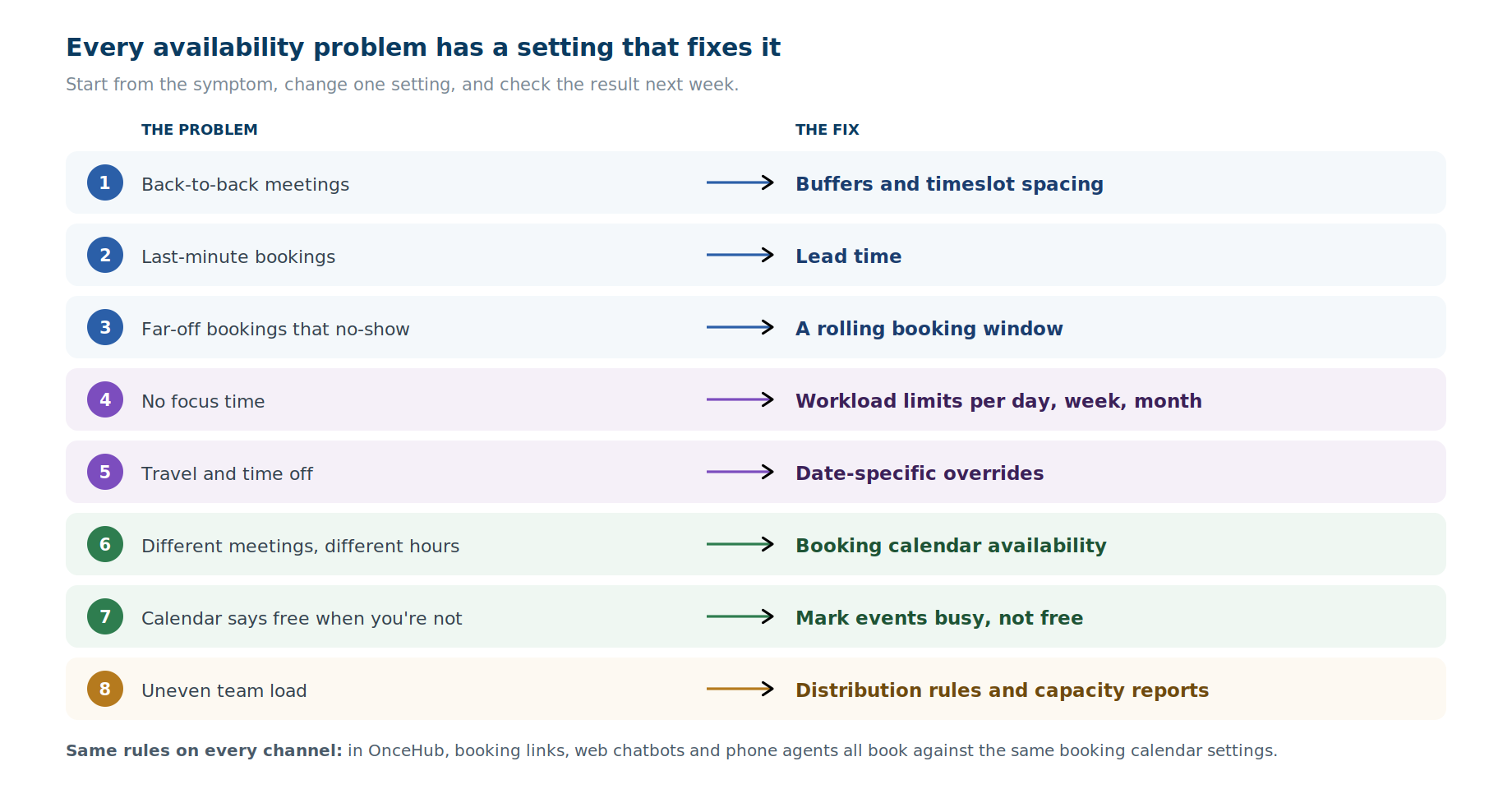
Which availability setting fixes which problem?
|
The problem |
The fix |
Where it lives in OnceHub |
|---|---|---|
|
Back-to-back meetings with no breathing room |
Buffers and timeslot spacing |
Booking Calendar timeslot preferences |
|
Last-minute bookings you can't prepare for |
Lead time |
Booking Calendar timeframe preferences |
|
Far-off bookings that turn into no-shows |
A rolling booking window |
Booking Calendar timeframe preferences |
|
Too many meetings, no focus time |
Workload limits |
Booking Calendar workload management |
|
Travel, conferences and time off |
Date-specific overrides |
Availability settings |
|
Different meetings need different hours |
Booking calendar availability |
Each Booking Calendar |
|
"Free" on your calendar when you're not |
Busy and free event status |
Your connected calendar |
|
Uneven load across a team |
Distribution rules and capacity reports |
Meeting distribution and Analytics |
Recommended settings by meeting type
Use these as starting points, then adjust to your own work.
|
Meeting type |
Buffer after |
Lead time |
Booking window |
Daily limit |
|---|---|---|---|---|
|
Discovery or intro call (30 min) |
10 to 15 minutes |
24 hours |
14 days |
4 to 5 |
|
Client review (60 min) |
15 minutes |
24 hours |
21 days |
3 |
|
Sales demo (45 min) |
15 minutes |
4 hours |
14 days |
5 |
|
Internal check-in (15 to 30 min) |
5 minutes |
2 hours |
7 days |
No limit |
1. "I keep getting booked back-to-back"
Add buffers before and after meetings, and use timeslot spacing so start times don't stack. Back-to-back meetings happen because an open calendar shows every minute as bookable, including the minutes you need to write notes, prepare, or get to the next room.
OnceHub's timeslot preferences give you three settings:
- Buffer time adds a gap before and after each meeting to prevent back-to-back scheduling.
- Timeslot spacing sets the minimum gap between available booking times.
- Starting times control the minute marks when slots begin. Starting times every 15 minutes offer 9:00, 9:15, 9:30 and so on.
How they work together: a 30-minute meeting at 10:00 with a 15-minute buffer after it ends at 10:30, so the next slot can't start before 10:45. With starting times every 15 minutes, 10:45 is offered. With starting times on the hour and half hour, the next slot offered is 11:00.
A practical setup: a 15-minute buffer after client meetings, and starting times on the hour or half hour. A guest sees fewer slots, and every one of them leaves you room to prepare.
2. "People book me for first thing tomorrow, and I can't prepare"
Set a lead time, so nobody can book you inside the notice period you need. Without one, a prospect can book a discovery call for 8am tomorrow at 11pm tonight, and you walk in cold.
Lead time determines how much advance notice is required before a meeting can be booked. With a lead time of 24 hours, guests only see slots starting a day from now.
Match lead time to the meeting. A quick check-in might need two hours. A first consultation with research to do might need a full day (24 hours).
3. "People book weeks ahead, then don't show up"
Limit how far ahead people can book with a rolling booking window. People who book two months out are more likely to forget, or to find something else has taken the slot.
The booking window controls how far in the future clients can book. In OnceHub you can set it four ways:
- A rolling window in calendar days, such as the next 14 days.
- A rolling window in bookable days, which counts only days with availability. A guest always sees the same number of usable days, even when weekends and blocked days fall in between.
- A fixed date range, for one-off booking periods such as an enrollment week or a campaign.
- Open-ended, with no limit. That's not recommended if no-shows are a problem.
One thing to check: OnceHub's AI phone agents don't enforce a booking window set by bookable days, so use calendar days for any booking calendar that also takes calls.
A shorter window also keeps your schedule flexible. You aren't locked into commitments made before you knew what the month would hold.
4. "My week fills up and I never get focus time"
Cap how many meetings can land in a day, week or month with workload limits. An open calendar will fill until it's full. A limit decides when enough is enough.
OnceHub's workload management settings set the maximum meetings each host can take per day, week and month. Where more than one limit applies, the strictest one wins. Once a host reaches a limit, OnceHub stops offering their slots on that booking calendar for the rest of the period.
Protect focus blocks deliberately. Two approaches work:
- Shorten your bookable hours. If your working day runs 9 to 5 but your mornings are for deep work, make only 1 to 5 bookable.
- Block focus time as busy on your connected calendar, so it removes those hours from every booking calendar at once.
5. "I'm traveling next week, and my calendar doesn't know it"
Use a date-specific override instead of editing your weekly routine. Changing your recurring hours for one week means remembering to change them back, and the week you forget is the week a client books a slot you can't take.
A date-specific override changes your availability for the dates you choose only. Afterward, your normal schedule returns automatically. Because locations can be set on date-specific availability, you can also change the meeting location for those dates, for example removing in-person slots while you're away and keeping video and phone.
Use overrides for: vacations, conferences, half days, a week working from another office, and extra hours before a deadline.
6. "My intro calls and client reviews shouldn't share the same hours"
Keep one routine for yourself, and give each meeting type its own availability. OnceHub separates the two:
- Profile availability is your baseline: the hours you generally work.
- Booking calendar availability is set for one meeting type. VIP clients might get early-morning slots, intro calls only afternoons, and reviews only Tuesdays and Thursdays.
For high-value requests, add approval. With booking with approval, you review a request before it's confirmed. While it waits, OnceHub removes the requested slot from your availability on every booking calendar, so it can't be double-booked. Booking with approval is available on all plans.
For meetings in different formats, assign video, phone or in-person to each time block on one calendar. Our guide to running hybrid meetings covers that setup in detail.
7. "My calendar says I'm free when I'm not"
Check how your calendar marks events as busy or free, because scheduling tools read the status, not the title. An event called "Doctor's appointment" that's marked free won't block a booking.
In OnceHub, how events block your availability depends on your calendar:
- Microsoft 365 and Exchange: events marked Busy, Tentative, Working Elsewhere or Away block availability.
- Google Calendar: only events marked Busy block availability.
- iCloud: only events marked Busy block availability, and all-day iCloud events can't be marked Busy. To block a whole day, create an event that spans your working hours.
- Any calendar: events marked Free never block a booking.
The fix: mark personal commitments and focus blocks as busy, and use free only for reminders that don't take your time.
8. "Some of my team are overbooked while others are idle"
Spread demand with distribution rules, and check your capacity before peaks hit. When every prospect books the person they found first, load follows whoever is most visible, not whoever has time.
- Distribution rules. On OnceHub's Route plan and above, meetings can be distributed by round-robin, by maximum availability, or by priority, so new bookings spread across the team.
- One front door. Booking Hubs, on the Schedule plan and above, put several team members' calendars behind one page, so guests reach the right person without choosing from a list of links.
- Capacity reports. OnceHub's Capacity Planning report, on the Schedule plan and above, shows utilization hourly in Day view and daily in Week view, and flags blocks where past demand ran at least 20% above or below current capacity. Our guide to capacity planning explains how to read it.
Before a busy season, check the report a few weeks ahead, then add hosts or extend hours with date-specific overrides where blocks are flagged as under capacity, meaning past demand ran at least 20% above what you can take.
Illustrative example: one advisor's week
Here is how the eight fixes could combine for a financial advisor who takes intro calls, client reviews and quick check-ins.
|
Setting |
Configuration |
|---|---|
|
Profile availability |
Monday to Friday, 9am to 5pm |
|
Focus time |
Mornings blocked as busy on Monday and Wednesday |
|
Intro calls |
Afternoons only, 30 minutes, lead time of 24 hours |
|
Client reviews |
Tuesdays and Thursdays, 60 minutes, 15-minute buffer after each |
|
Quick check-ins |
Any open slot, 15 minutes, lead time of two hours |
|
Booking window |
Rolling 21 days |
|
Workload limit |
Five meetings a day, 20 a week |
|
Overrides |
Conference week: video and phone only |
The result is a calendar that fills with meetings the advisor can actually prepare for, and leaves two protected mornings untouched.
The 15-minute monthly availability audit
Review your availability every month, and before any known busy period. A setup that fit your work in spring may not fit it in autumn. Five checks cover it:
- Look for back-to-back days and add buffers where they keep appearing.
- Check last-minute bookings and raise lead time if you're preparing in a rush.
- Compare no-shows against how far ahead people booked, and shorten the booking window if far-off bookings are the ones that fail.
- Count meetings per day and adjust workload limits if days are overflowing.
- Add overrides for the next month's travel and time off.
Make the rules work across every channel
Availability rules only work if every way of booking follows them. In OnceHub, AI phone agents and web chatbots book against the same booking calendar as your booking links, so a caller can't book a slot your link would refuse.
Working hours, locations and buffers set once apply whether a booking comes from a link, a web chatbot or an AI phone agent. On phone calls, use calendar-day booking windows, as noted in section 3, and keep in mind that single-select, multi-select, additional guest and attachment questions aren't asked on calls.
When a guest picks a time, OnceHub also holds that slot for up to five minutes while they complete the booking form, so two people can't book the same time.
To see these settings on your own calendar, start a 14-day free trial of OnceHub, with no credit card required. You can also watch Rami Goraly and Aviram Hinenzon walk through availability management in the webinar Top 5 Things to Know About Managing Availability.
Frequently asked questions
How do I manage my availability?
To manage your availability, turn each scheduling problem into a booking rule. Add buffers to stop back-to-back meetings, set a lead time to stop last-minute bookings, use a rolling booking window to limit far-off bookings, cap meetings with workload limits, and handle travel and time off with date-specific overrides.
What's the best tool to manage my availability?
Look for a scheduling tool that turns availability into rules: buffers, lead time, booking windows, workload limits and date overrides. OnceHub sets these per booking calendar and applies the same core rules to bookings from links, web chatbots and AI phone agents.
How do I manage my availability in OnceHub?
Start with your profile availability, which holds the hours you generally work. Then set rules on each booking calendar, such as its own hours, buffers, lead time, booking window and workload limits. Finally, add date-specific overrides for travel, time off and extra hours.
Can an AI phone agent follow my availability rules?
Yes, in OnceHub. AI phone agents book against the same booking calendar as your booking links, so working hours, locations and buffers apply on calls too. Two exceptions: a booking window set by bookable days isn't enforced on calls, so use calendar days, and single-select, multi-select, additional guest and attachment questions aren't asked by phone.
How do I stop back-to-back meetings?
To stop back-to-back meetings, add a buffer before and after each meeting in your scheduling tool, so a gap is applied automatically to every booking. Timeslot spacing and starting times help too. In OnceHub, buffers are set once on a booking calendar and apply to every booking it produces.
How do I stop people booking last-minute meetings?
Set a lead time, which is the minimum notice required before a meeting can be booked. With a lead time of 24 hours, guests only see slots starting a day from the time they book. Match the lead time to how much preparation each meeting needs.
How far in advance should people be able to book?
A rolling window of two to four weeks is a sensible starting point for most meeting types, so bookings are recent enough to stay relevant. In OnceHub, the window can count calendar days, count only days with availability, cover a fixed date range, or be left open-ended. Shorten it if far-off bookings are the ones that turn into no-shows.
How do I limit the number of meetings in a day?
Set a workload limit on the booking calendar. In OnceHub, you can set the maximum meetings each host can take per day, week and month, and once a limit is reached, that host's slots stop appearing on that booking calendar for the rest of the period.
How do I block time off without changing my weekly schedule?
Use a date-specific override. It changes your availability for the dates you choose only, then your normal schedule returns automatically. In OnceHub, locations can also be set on date-specific availability, so you can remove in-person slots while you travel.
Why can people book me when my calendar shows I'm busy?
Usually because the event is marked free rather than busy, and scheduling tools read the status, not the title. In OnceHub, Google Calendar and iCloud events block availability only when marked Busy, while Microsoft 365 and Exchange events block it when marked Busy, Tentative, Working Elsewhere or Away.
How do I protect focus time on a booking calendar?
Either shorten your bookable hours so focus blocks aren't offered at all, or block focus time as busy on your connected calendar, which removes it from every booking calendar at once. A daily workload limit adds a second layer of protection.
How do I balance meetings across a team?
Use distribution rules that spread new bookings across the team, such as round-robin or maximum availability, and set workload limits per host. In OnceHub, distribution rules are on the Route plan and above, and the Capacity Planning report on the Schedule plan and above shows where demand is outrunning capacity.
Sources
- OnceHub Help, Booking Calendar Timeframe and Timeslot Preferences: booking window, lead time, starting times, timeslot spacing and buffer time.
- OnceHub Help, Booking Calendar Workload Management: maximum meetings per host per day, week and month; the strictest limit applies.
- OnceHub Help, Booking Calendar Settings not Supported in Phone Booking: bookable-day booking windows and some booking-form question types not supported on phone calls.
- OnceHub Help, Offering Multiple Meeting Locations Per Time Block: locations set on weekly and date-specific availability.
- OnceHub Help, Booking With Approval: requested slots removed from availability on all Booking Calendars while pending; no calendar event created during the request.
- OnceHub Help, What's New, June 29, 2026: booking with approval available on all plans.
- OnceHub Help, How Busy Time from Your Connected Calendar Is Used to Manage Availability: which event statuses block availability by calendar provider; all-day iCloud events.
- OnceHub Help, How OnceHub Protects the Guest's Time Selection: a selected slot is held for a maximum of five minutes.
- OnceHub Help, Capacity Planning for Optimizing Staffing Level: hourly utilization in Day view, daily in Week view, and the 20% comparison with past demand.
- OnceHub webinar, Top 5 Things to Know About Managing Availability: profile and booking calendar availability; overrides; approval; capacity planning.
- OnceHub pricing: distribution rules on Route; Booking Hubs and capacity planning on Schedule; 14-day free trial.
Disclosure: OnceHub publishes this guide, and its features appear in it.